Create, review, and send invoices
Create an invoice from a gig
Section titled “Create an invoice from a gig”Open Glovelly Menu to review an invoice
- Open a saved gig that has not already been invoiced.
- Choose the invoice action.
- Check the generated preview and download the PDF if needed.
- Open the invoice to review its details and line items.
Glovelly links the gig to the invoice and creates lines from the fee, claimable expenses, and applicable mileage. You can also create one invoice from selected gigs for the same client, or generate a monthly invoice from a client.
The invoice pane shows dates, total, status, PDF readiness, full description, and issue/delivery information directly. Scroll the details region if a long description needs more room. Choose Line items to use the existing editor for invoice lines, adjustments, and description changes.
When the pane has enough room and the PDF is current, a first-page thumbnail fits beside the details, centred within the available space. Click it, or focus it and press Enter, to open the full PDF preview. Hover or focus shows page-one help without a permanent caption. The existing Preview action is still available if the thumbnail is hidden or cannot load.
The thumbnail reads the saved PDF; viewing an invoice does not generate, repair, issue or send it. If the PDF changes while the thumbnail loads, refresh or reselect the invoice. A concurrent update can briefly leave the supplementary image behind the latest document, so use the full preview to review before sending. Large or unusual PDFs may need the explicit Preview action instead.
Review before you send
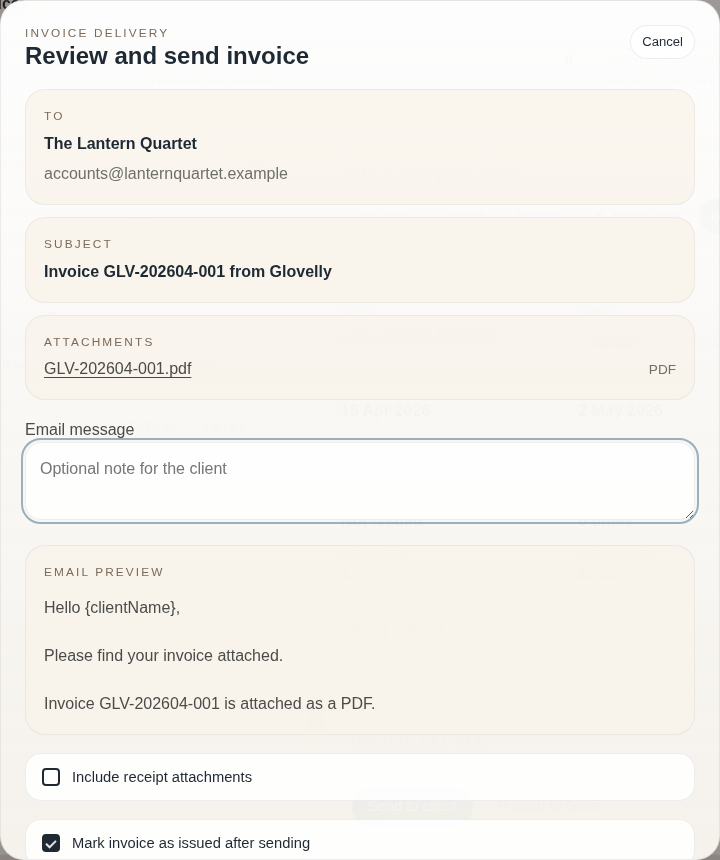
Section titled “Review before you send”- Open the invoice and choose Send to client.
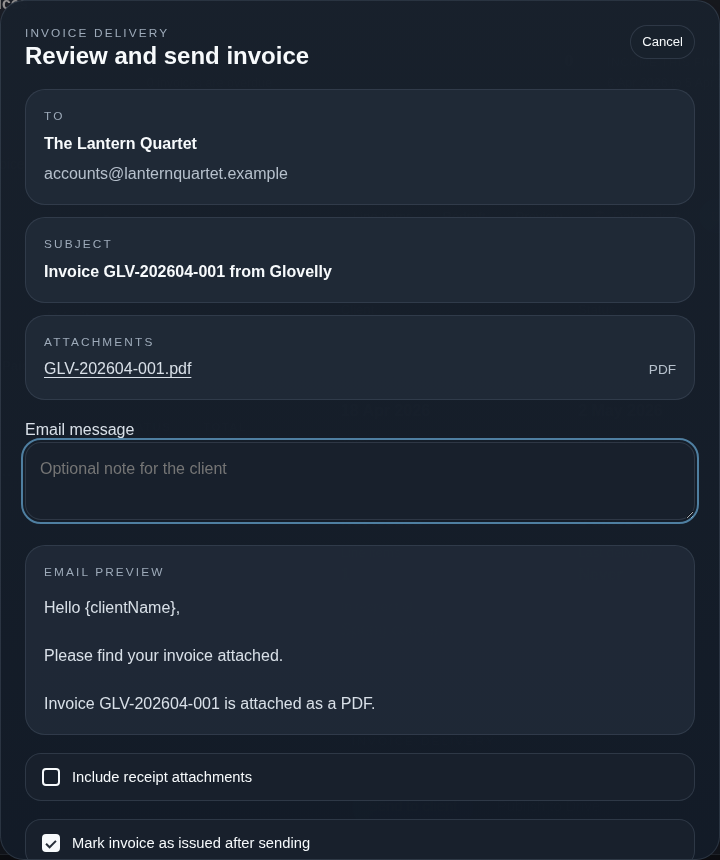
- Check the recipient, subject, message, and current PDF attachment.
- Add an optional message if it helps.
- Choose Send invoice only when everything looks right.
The review screen is deliberately the last step. Closing it does not send anything.
Need help? Contact help or report a problem.