Gigs
Create a gig
Section titled “Create a gig”Open Glovelly Menu to create a gig
- Open Gigs and choose Create gig.
- Select the client.
- Choose the work type and add a title or description.
- Add the location, date, fee, and status.
- Save the gig.
Use Planned for confirmed future work, Completed once it is finished, Cancelled when it will not go ahead, and Draft while the details are still taking shape.
Prepare gigs from booking information
Section titled “Prepare gigs from booking information”- Choose Add to Glovelly and paste an email or booking notes, upload a PDF, or enter a Google Doc link.
- Check the suggested treatment and choose Gig import under Treat as if needed. A PDF can also be a receipt or a resource.
- Choose Prepare gig drafts. If analysis is unavailable, choose Prepare manual gig draft instead.
- Select Review import, check the source and each proposed row, and correct any missing or uncertain details. Accept only the rows you want.
- Choose Commit decisions to create the accepted gigs. Preparing the batch alone does not create gigs.
To analyse a Google Doc, connect Google Docs in Services or when prompted. This grants read-only access to your Google Docs, not just the link you submit. You can attach a link as a resource without connecting. Check inferred dates and years in review, especially relative days and dates without a year. For a set list, attach the Sheet to a gig, choose Go to gig, and use the existing set-list import there.
Add useful context
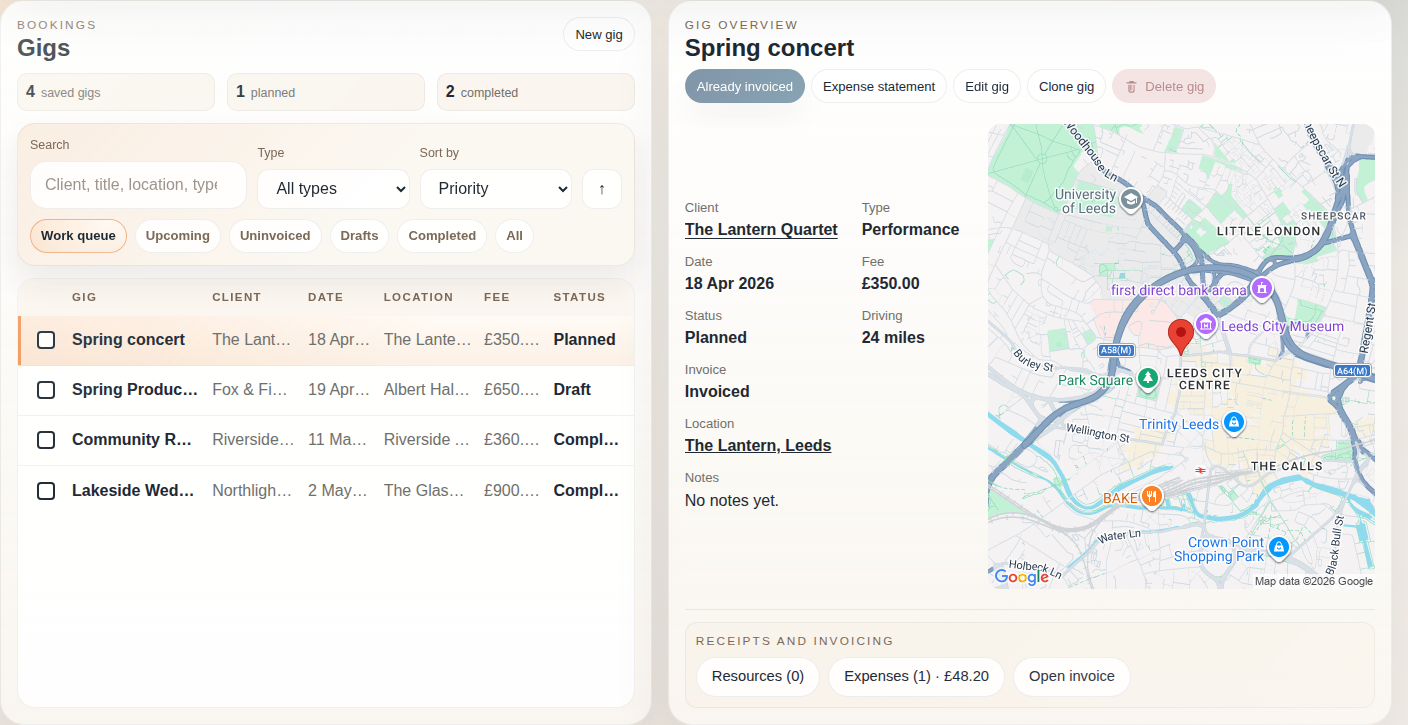
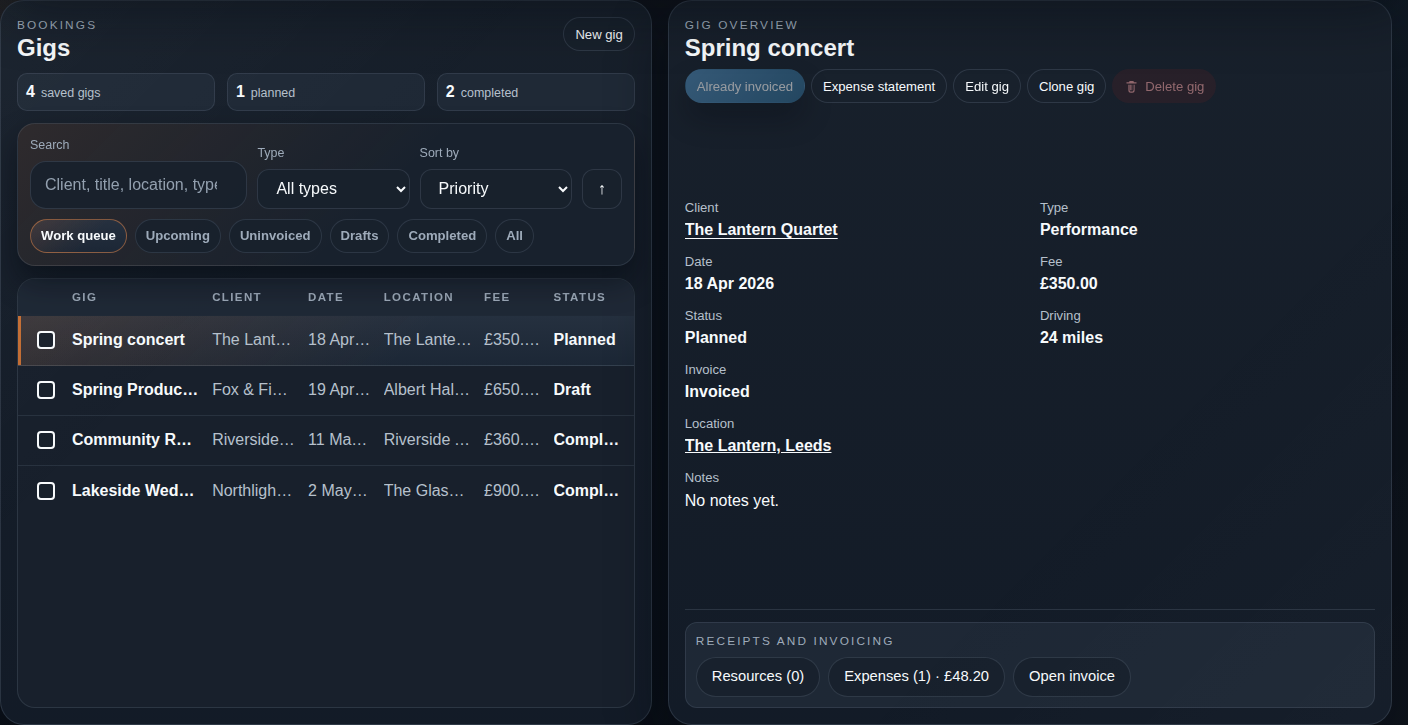
Section titled “Add useful context”You can add notes, driving mileage, passengers, expenses, receipts, and linked resources to a saved gig. Booking details and full notes appear directly in the details pane. Choose Resources to manage links and files, or Expenses to manage costs and receipts. These collections open separately so you can finish the task and return to the same gig.
Check where to go
Section titled “Check where to go”Choose the saved location to search for the venue in Google Maps in a new tab. Where available and space permits, an unverified map search image appears beside the details and opens the same search. Hover over or focus the image for help. It uses the gig’s saved location, not the client’s billing address, and needs no per-gig approval checkbox.
Check the venue text before relying on the result, especially for names shared by several places. Edit and save the location to correct it; unsaved typing does not change the preview. If an editor, narrow pane or loading problem hides the image, use the written location and Maps link instead.
Automatic previews load directly from Google, sending the location query and browser network/request information. See privacy and terms for details.
Work through your list
Section titled “Work through your list”On a desktop, scroll the gig list to find more work while keeping search and filters in place. The selected gig uses the available pane space for its details; if its notes are unusually long, scroll that middle region to read them in full. Editors and collection dialogs scroll separately when needed. The compact summary above the workspace stays available as you switch between Gigs, Clients, and Invoices.
On a phone or in a short window, scroll the page to reach the next panel. If a search or filter shows no results, clear it using the controls above the list.
Need help? Contact help or report a problem.